FontGenerator, the site where I’ve seen a number of different original fonts generated by artificial intelligence (AI), provides an interesting selection from which you can choose the coolest fonts for your next design project. The problem is how do you choose which font?
FontGenerator’s library of 106 AI-generated fonts are labeled as such. They also offer suggestions of what they could be used for. But it’s up to you to choose what you want and when you want to.
I’ll go over the basics of choosing the right font, including some practical considerations that can affect both its suitability and your ability to find the best font quickly.
Comparing contrasting designs
The first step in picking a suitable font is just comparing what FontGenerator has provided. The library includes all sorts of styles: from bold and narrow script letters like Amore Nib to more squarish, pixelated characters like Arcade Block Pixel. The descriptions include everything from possible poster headlines or invitation wording to signs and energetic poster headlines. There are even suggestions of how the fonts might fit into other projects.
Each font page shows a small set of letters — “drawn from briefs” — either traced or constructed as outlines, then spaced, checked for missing characters, broken shapes, and rendering before release. That last bit is particularly important, but there’s nothing stopping me from taking any of them out of the browser and using them directly in my documents.
FontGenerator’s Canyon 3D offers grooved Western extrusion; possibly useful for a poster headline. Atelier Light suggests a light vertical-stress serif with a small x-height; potentially useful as a restrained heading. Amore Nib is a broad-nib formal script with heart dots; maybe for an invitation. Arcade Block Pixel has two-pixel squarish letters; video game designs. Brush Flat Sail uses a broad flat-brush display lettering; signs and energetic poster headlines.
All of these can make good candidates for a specific type of project. If none seem to match exactly, FontGenerator does suggest that there may be a “Project-fit” candidate. However, I wouldn’t try to rank them on their own, without seeing them in context.
Intended size separates strike from viability
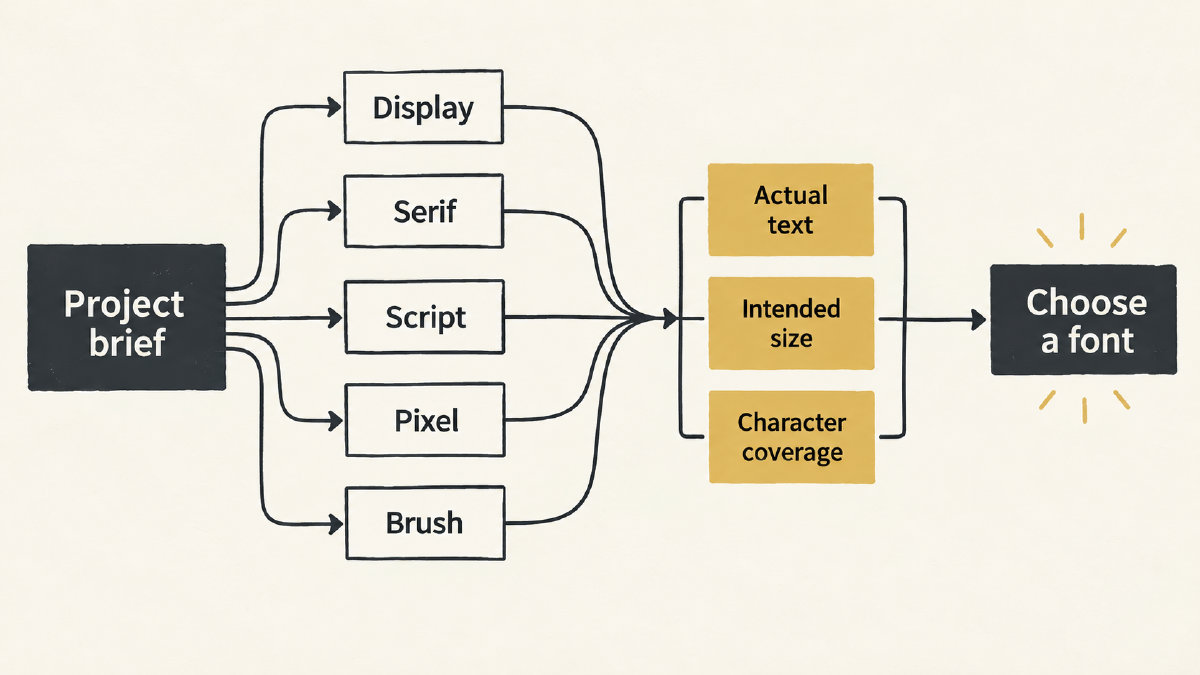
When looking at body text, the general advice is to pick fonts with open shapes, with evenly-spaced characters. For something like body text, you’d look for between 16 to 20 pixels tall. But if you’re going for a display font, you have to evaluate it at the intended large size. A font can be perfectly legible at 12 points, but completely unreadable at a poster-sized 72 points. So the trick is to pair the distinctive character of the head with a separate paragraph candidate that looks good at the smaller sizes.
Atelier Light is described as a light vertical-stress serif, small x-height, and possibly used as a paragraph candidate. It’s not clear whether this would read well on the screen. Readability and pairing success will depend on the actual text and the chosen size.
A browser comparison
One of the nice things about FontGenerator is the option to preview all the fonts across every font at once, rather than jumping through categories, or visiting each individual font page individually. But if you’re not sure, there are links to category-based views, such as sans serif, script, pixel and other styles. Each font page shows them in a variety of sizes and weights.
There’s a handy feature in the top menu to check out the fonts together in a browser tester, with a side-by-side view of the selected FontGenerator fonts along with locally installed files.
In the example above, I used the same actual headline, brand name or menu text I’d plan to use as my test case, and compared them at the same size. In reality, though, the actual text you plan to use may vary. To compare the shortlisted fonts against one another, FontGenerator allows you to change consistent comparison sizes, too.
You can also test out the font in isolation, using the library’s own words or your own words. And you can see what a particular font will look like within a larger document by adjusting the line-height and letter-spacing.
Unfortunately, the results of such tests aren’t documented here, nor have we found established successful pairing. So if you want to try a couple of them out, you’ll need to rely upon the library itself to give you a sense of how they look together.
Check complete character needs
What if you’re not sure? Or do you need to test the characters? That’s another possibility: actually testing a font against the full complement of characters needed for a project. FontGenerator does offer this in the form of Tester previews: a Pangram, Alphabet, Numbers and Paragraph. If you’re not sure what’s required, you can check out what characters a particular font includes, and whether they’re compatible with the languages you plan to use them with.
Some of these fonts may not contain certain glyphs. This may cause the browser to draw those characters using the fallback font, making the preview appear more complete than the selected font. Different-looking characters may simply be because the font lacks them, requiring the browser to substitute with a different font altogether. Because of this, I’d recommend that a mixed preview of various characters is not sufficient to establish complete coverage.
Download decision
Finally, the question is whether or not you can use a given font for the purpose you intend, as well as whether the file format is appropriate. Individual font pages show detailed testing, so you can review the license carefully before downloading the font. As long as it matches the intent of the project, the download should proceed smoothly.
It’s easy to confuse file compatibility with permission. Both TTF and OTF formats are typically compatible with desktop applications. WOFF and WOFF2 formats tend to be used on websites. File formats usually only provide compatibility information, not a determination of whether or not a user has permission to use a font. You can always check the license against the intended project.
Library font vs. Unicode substitution
If you’re still unsure about the best choice, it’s worth noting that there are other options, too. One of them is copying and pasting style traits that look like copy-and-paste styles: Unicode-symbol substitutions resembling bold, cursive or gothic lettering. Obviously, you don’t get a font file, just text made of substituted Unicode symbols. The tester description is a basic prompt describing the style of the font, and then generating an installable font based on the prompt.
Alternatively, a custom font could be used to express an appealing style direction that the shortlist can’t satisfy. Custom generation is reserved for a direction you’re not satisfied with the shortlist.
Ultimately, the library font is the right choice when actual-text checks determine that it fits the job.