If you've ever seen a paragraph sign (¶), also called the pilcrow sign, or a section sign (§), you might have wondered what they mean. In particular, do they mark the beginning of a new paragraph? They're called paragraph marks in many contexts — like in Word or in publishing.
The pilcrow sign
The word “paragraph” comes from the Greek παράγραφος (parágraphos), meaning “to write beside.” The term evolved to describe a block of text that is separated from other blocks by spacing. This has led to some terminology confusion, though: a paragraph break can be either an instruction to split a paragraph into two parts at a marked point, or it can be a displayed paragraph break (a soft return).
A paragraph break can also be considered a formatting-mark control. A formatting mark is a special character that controls how text is displayed, such as tab stops, page breaks, and section breaks. Paragraph breaks are typically represented as the pilcrow sign (¶). A section sign (§) is similar, but is used for sections within a document.
In the past, these signs were used to indicate where a proofreader should make changes. Today, the pilcrow is often used in desktop publishing software as an icon to toggle formatting marks, or as the symbol showing a paragraph break when those marks are displayed.
Copyable characters: Paragraph sign versus section sign
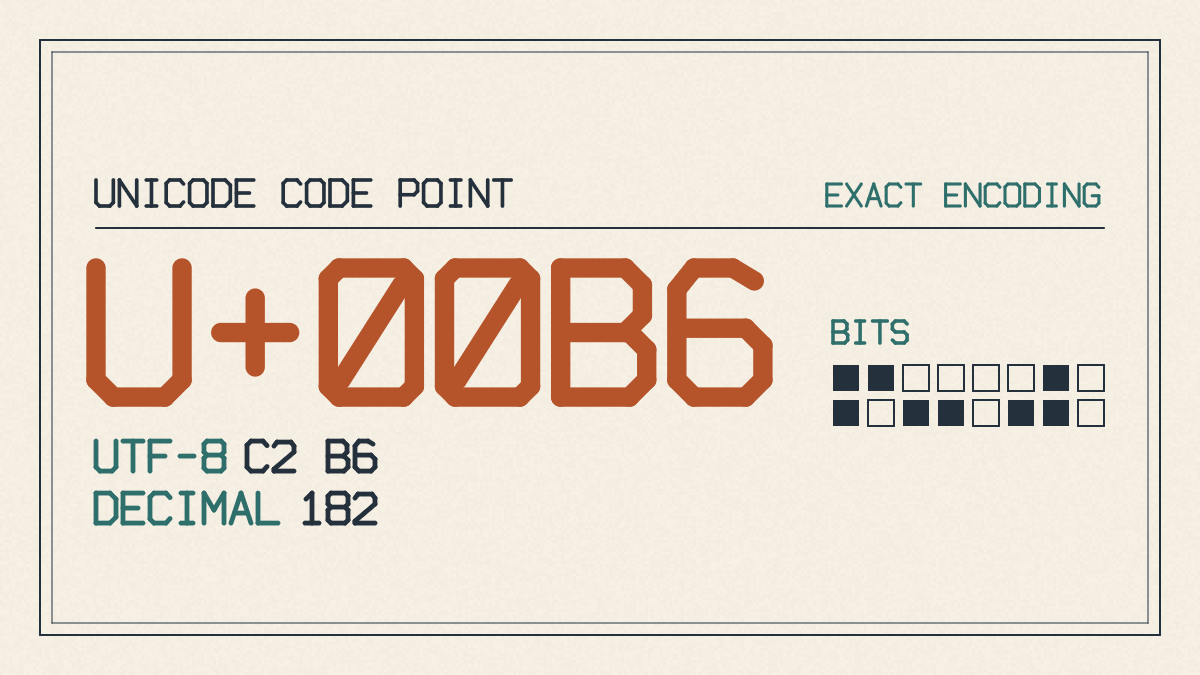
You can copy a paragraph sign from anywhere online, including this article’s body. The character is the Unicode character U+00B6 PILCROW SIGN. You can use it in your HTML documents with ¶ or its numeric representation, ¶. If you’re not careful, however, it can look just like the section sign (§) when rendered with a specific font.
The section sign looks quite different from the paragraph sign.
Microsoft Word’s paragraph sign
Paragraph markers can be displayed or hidden in Microsoft Word. When they are hidden, they appear in the document as invisible characters that you can toggle on or off. Persistent display settings can keep paragraph signs visible even after toggling them off.
Word 365 Desktop’s Show/Hide button provides access to paragraph markers.
Word allows users to configure their own preferences, which can override any display settings applied by default. Here’s how to configure those settings:
On Windows
Click File > Options > Display. Then click Always show these formatting marks on the screen. The check boxes represent what formatting symbols you want to see. By default, Word displays spaces, paragraph markers, and tab marks. You can add others if needed.
On macOS
Choose Word > Preferences > View. Click Show Non-Printing Characters. Check boxes here determine whether these characters are always displayed regardless of Show/Hide settings. Clearing a check box will no longer configure that character for always-on display.
Testing paragraph signs in browser fonts
If you’re trying to determine whether a paragraph sign appears in your font, then you can try FontGenerator’s browser font tester.
We created the following example text and compared the appearance of the paragraph signs across several fonts.
Paragraph ¶ Next paragraph
You can copy and paste the following text, then add font files from your computer or choose a font from the tester’s library. You can also choose between the following local files or download additional font families from our collection:
Arial
Arial Black
Comic Sans MS
Courier New
Georgia
Impact
Palatino Linotype
Times New Roman
Verdana
TTF, OTF, WOFF, WOFF2
Please note that there’s a 10 MB limit per file. We recommend downloading only the fonts that you need.
We’ve provided open shapes and even spacing at 16 to 20 pixels in the body text. The display fonts, such as heading and accent fonts, should be assessed at large sizes. Please bear in mind that all fonts are copyrighted, so we encourage you to explore free resources before downloading fonts.
Here are the details:
Left bowl: filled or empty
Downward bowl extension: possible mirrored D appearance
Backbone: usually straight, sometimes curved toward the bowl
Workflow based on documented tool capabilities
There are limitations to how well we can judge whether a font includes a certain glyph based on the preview alone. For example, if the selected font does not include the paragraph sign, your browser will use a fallback font for it, which may look different from the surrounding letters. However, if you don’t get the same appearance, that may be a reason to investigate further.
Visual consistency isn’t sufficient proof of coverage, however. Simply because a font displays a certain symbol doesn’t mean that it contains the character.