Audience and medium
The text size that is readable depends on the apparent letter sizes between typefaces, as well as the actual text you intend to produce. You should determine the smallest font based on the audience and final medium of your text.
In the United States, clear-print recommendations usually attribute this to a particular point (or pixel) size, but elsewhere they are just descriptions of the general print-size. The actual text itself will determine whether it’s appropriate for a given point or pixel size. If you’re working with a designer who uses software to lay out the document, he’ll already know what font sizes are appropriate.
Sensory Trust has some excellent comparisons of its own in the form of paragraphs, which you can read by comparing them against printed Arial. The key difference between Sensory Trust’s clear print recommendation and other guides is that Sensory Trust specifies that it’s actually the minimum equivalent to 12pt Arial; ideally, 14pt. Also, include page numbers, captions, and any footer text.
If you’re printing documents for people who have visual impairments, the Royal National Institute of Blind People describes “regular” print as usually 10 or 12 points, and suggests large or giant print for people who struggle to read it. “Large print” generally ranges from 16 to 18 point, while “giant print” is larger than that. There’s no single smallest readable typeface or even an agreed minimum size — because readability depends so much on context.
Narrower letterforms
You can reduce the amount of horizontal space needed by reducing the point size. But don’t treat width as a separate choice. By that, I mean width shouldn’t be judged on its own: choosing narrower letterforms and reducing point size are separate decisions. Rather, when considering compact candidates, judge them through open shapes, weight, and even spacing.
Atrium Sans
Atrium Sans is a condensed geometric square-ended sans serif typeface that is intended for use in signage. While the design is quite open and balanced, Atrium Sans’ condensed width could be a candidate for saving space horizontally. Condensed typefaces aren’t always suitable for small-text layouts, however. Just being classified as “condensed” isn’t proof of their suitability at small sizes. For example, we’ve seen a number of fonts classified as “condensed,” but they look awkwardly cramped when displayed at small sizes.
As such, I’ll start my comparison of each layout using the same nominal size. As a result, the apparent letter size will vary across the different fonts. Sensory Trust recommends that readers pick a standard or semi-bold weight for their documents, and advises against choosing lighter fonts.
Line height and letter spacing
I’ll assume that you’ve already selected a line height (typically between 1.2x to 1.5x) and letter spacing. The two together determine how much room the text will take up.
Microsoft Word
There are many different fonts available within Microsoft desktop Word, and each has accepted point sizes that vary depending upon how they were created. Word also supports half-point increments, including 10.5 and 105.5, although not all of these sizes are appropriate for reading. Word’s software input range allows you to enter anything from 1 to 1638 points, though obviously only a small subset will be acceptable for a document that you want to read.
What matters more than the absolute point size is whether the font is suitable for the reading task, and whether it meets the requirements of the target audience.
Manual browser comparison
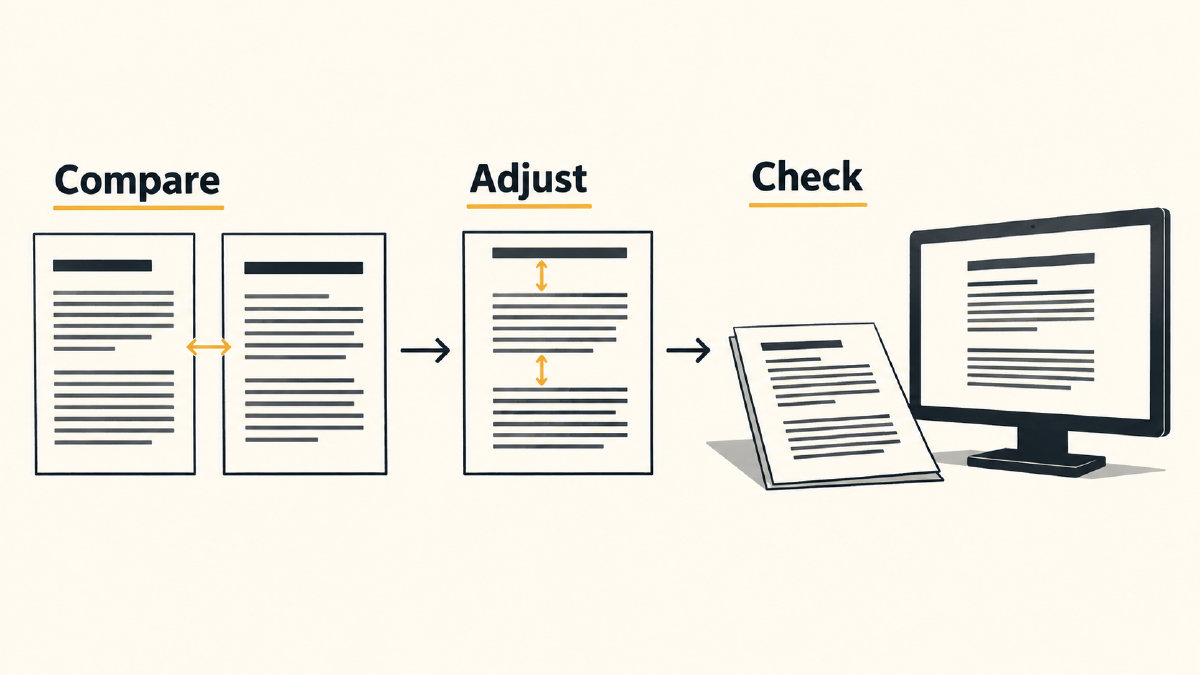
To get a good sense of how a font looks at various sizes, I’ve been testing representative text using a manually adjusted font generator, changing both size and spacing deliberately. To begin with, I used matched settings: font size, line height and letter spacing, and then changed the size, line height, and letter spacing separately.
FontGenerator includes a built-in font tester, which I used alongside local copies of the fonts I tested. However, FontGenerator’s main advantage lies in its ability to generate multiple fonts at once, and compare them visually. I’ve used FontGenerator to compare fonts side-by-side, too.
For the purpose of this article, however, I wanted to make sure that the reader was able to view his own words. So instead of generating text, I took a representative excerpt from the intended document, and generated the fonts I wanted to test. Then, I included both local font files and FontGenerator’s library fonts.
At first, the three fonts I’m testing all had the same setting: a font size of 16px, a line height of 1.4, and a letter spacing of 0.05em. After that, I adjusted them separately: the first adjustment reduced the font size to 13px, keeping the same line height and letter spacing. Then I increased the line height and decreased the letter spacing slightly. Finally, I kept the line height constant, and decreased the font size again, increasing the letter spacing a little. I then inspected them at the intended size, 13px.
Using FontGenerator, we find that body-text advice states that “open shapes and even spacing are best.” The recommendation for body text is between 16 to 20 pixels.
Display fonts can still be suitable for use at large sizes, and may even look better there, so I’ve documented my preview workflow for the sake of completeness.
However, I’m not recommending any specific font or font pairing. Instead, I encourage you to do your own testing and see which combinations work best for your needs. I’ve outlined a prospective viewer’s experience here, which includes the manual visual judgment process that we recommend our users follow, followed by page fit checks and a review of the accessibility features of your document.
Final check
I strongly recommend that you check the layout of your compact document or exported PDF at actual size. It’s easy enough to print it out, and inspecting it in print gives you a clearer idea of how it will look in reality.
Similarly, I encourage you to test the layout of your document at the target display to ensure that it looks good. Ultimately, it doesn’t matter how small you choose to make the text, provided that the text remains legible.
Unicode tiny text
This is a rather different approach to tiny text, and is entirely unrelated to document typography. In short, you need to either use the existing small-font generator, or else simply copy the small text into your application.
Unicode tiny text refers to the fact that the characters themselves are small. When you create text with small fonts, the characters themselves are typically unchanged. Instead, you might alter the font to change the appearance of the characters. Here, instead, I’m looking for plain Unicode characters, which you can copy and paste directly. This method involves character substitution, rather than changing the document typeface or its size.
This method is primarily suited to situations where you need very small text, such as Instagram and TikTok bios, Discord names, X posts and game tags. Some apps and older phones won’t display some characters correctly, and if the app lacks a way to show them, you’ll end up with boxes that represent missing characters. Fortunately, superscript characters, which sit high on the line, cover almost the whole alphabet — all except q. You’ll also note that I haven’t attempted to add small caps, which are all the letters except x, or subscript, which comprises 17 letters. Should a letter be unsupported, it’ll remain unchanged.