
Suppose you’re writing a paper or an essay that requires the use of some kind of superscript, like for footnotes. How would you do it?
The most straightforward approach is to use a raised character in your text. But there’s also the option of formatting a normal letter as superscript.
The lowercase superscript s
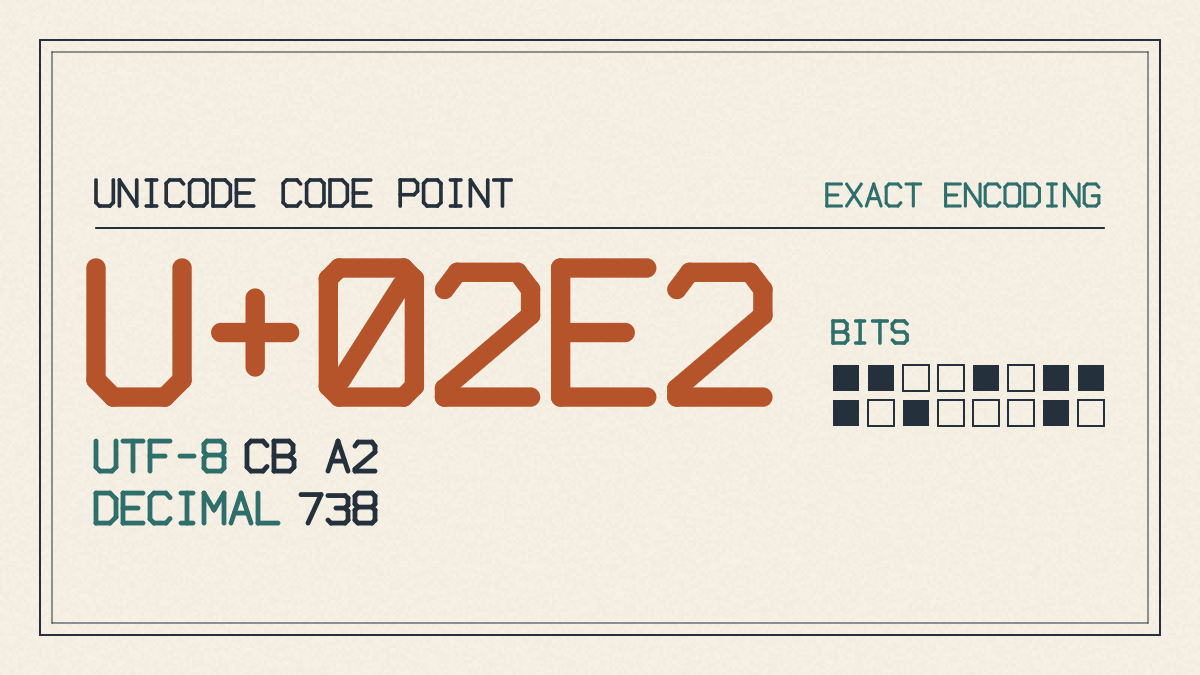
But first, let’s take a look at what we want to generate: the superscript lowercase s, or ˢ (U+02E2; Spacing Modifier Letters), and its uppercase counterpart.
Let me start by showing you the lowercase form, ˢ, along with how it looks beside a baseline letter: xˢ.
The character itself sits just above the line of text, and the result is a small version of the letter “s.” However, you might not always see the same results. You may see something very close to the above, but maybe not exactly. If I show you a different rendering, it could be because I’m using a different font, or the device you are viewing this on has different fonts than mine.
The uppercase counterpart
There’s a similar-looking character that might look like the uppercase version of the superscript s. In Wikipedia’s table, it is displayed as (superscript capital S). In Shepherd’s table, however, there’s no entry for the uppercase form of the superscript s. That makes sense, since I can’t recall seeing any use of it.
There’s another possibility: ᔆ, which represents the Canadian Syllabics Athapascan S (U+1506). Again, depending on what fonts are available on your system, you might or might not see this as the correct display. As such, the visual resemblance isn’t sufficient to equate this to the Latin alphabet’s uppercase S.
Plain text or superscript formatting
The question becomes: should we use a raised character embedded within our plain text, or apply superscript formatting to an ordinary letter? Windows Word documentation shows us how to format selected text as superscript. The character ˢ, meanwhile, is U+02E2 in Spacing Modifier Letters. If you need the raised letter to survive as plain text without markup, paste ˢ. If you’re working in a Word document, format an ordinary s or S as superscript.
To demonstrate the latter method, open Microsoft Word for Microsoft 365 on Windows. Select the letter you’d like to format, then click on Home > Superscript.
You’ll find more details about this process elsewhere on the Web, and it’s easy enough to implement. For now, however, focus on generating a short string of letters and inspecting them. If you don’t need to reuse them, you can simply copy and paste the text elsewhere.
Copying and checking the generator result
If you do need to reuse the text, however, you’ll have to make sure that nothing changed during the process. One way to do that is to enter the text in FontGenerator’s small font generator, then copy the Tiny (superscript) result.
The result will appear onscreen, and you can either select it all and click on Copy, or copy individual characters one by one. When copying individual characters, keep in mind that they will retain their original form unless converted into superscripts. The generator produces plain Unicode text, but leaves a letter unchanged if no small form is available. So check the result before you copy it.
If you’ve selected the entire block, you can view what appears on screen. The tiny versions of each letter may differ slightly from the regular size, and some apps or even older phones won’t render them correctly. They might appear as empty boxes instead.
Comparing fonts in the font tester
Now, if you want to try a longer string, it’s easy enough to enter the text you wish to test into FontGenerator’s font tester. You can compare how it appears within your browser alongside library fonts, or how it looks next to the actual font files stored on your computer.
ˢ
For those of you who aren’t too familiar with fonts, you might not know that font files usually consist of a number of glyph outlines, which determine how characters appear onscreen. Each font file covers only some Unicode characters, so your browser may use another font for characters it doesn’t include.
When selecting a font to preview, FontGenerator shows how characters appear against other fonts that you may have installed on your system. It’s possible that your own system doesn’t have the necessary font coverage, so it may substitute a default font instead.
Checking characters in the destination app
Finally, we walk through the FontGenerator font tester again. This time, we check the same sample in the destination app, and examine how characters are displayed there.
If we can’t find characters, they may appear as empty boxes. Alternatively, they may display incorrectly. The two main problems that we might face here are missing characters, and inconsistent character size or vertical position. Both are issues of native glyph coverage and of other-device support.
Note that the appearance of the character within FontGenerator’s preview does not indicate whether it’s actually supported natively or otherwise.